Google Search Console: The Free Tool Most Developers Ignore
What Is Google Search Console?
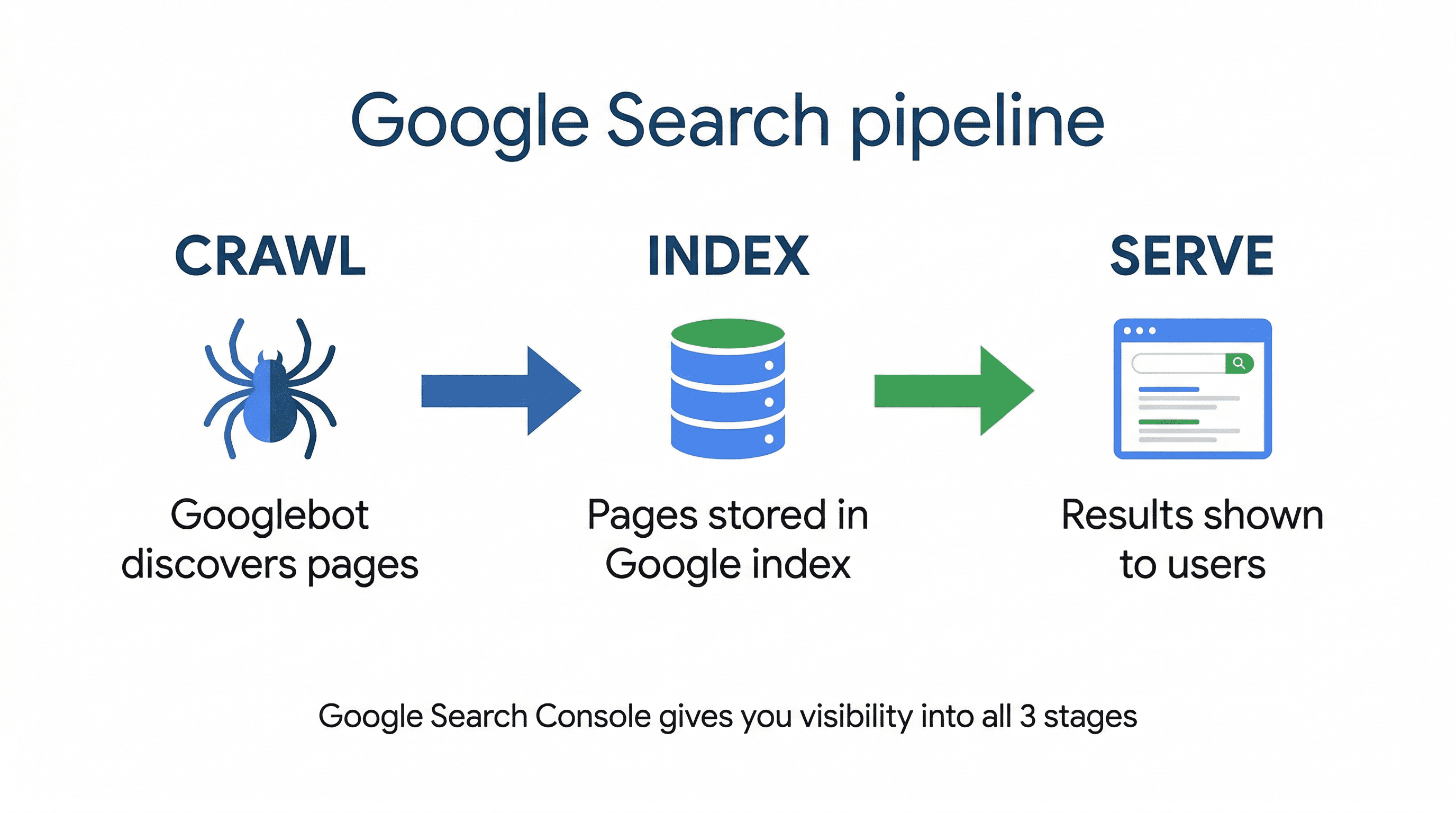
Google Search Console (GSC) is a free tool from Google that shows you exactly how Google sees your website. Think of it as the diagnostic dashboard for your site's relationship with Google's search engine.
It doesn't guess. It tells you which pages are indexed, which queries bring people to your site, what errors Google ran into while crawling, and whether your pages pass Core Web Vitals. If you've ever wondered "why isn't my page showing up on Google?" - this is where you find the answer.
GSC is not an analytics tool like Google Analytics. It doesn't track user behavior on your site. Instead, it focuses entirely on what happens before someone clicks through to you: how your pages appear in search results, how often they show up, and what's preventing Google from indexing them.
Why You Need It
Let me be direct: if you have a website and you're not using Google Search Console, you're flying blind. Here's why:
- It's completely free. No premium tier, no feature gating. Google gives you the full picture at zero cost.
- It shows you what Google actually sees. Your page might look fine in a browser but be invisible to Googlebot. GSC tells you if there's a disconnect.
- It flags indexing issues before they hurt you. Pages blocked by robots.txt, noindex tags you forgot about, redirect chains - GSC catches them all.
- It reveals your real search performance. Which keywords drive impressions, which pages get clicks, and where your average position sits.
- It lets you request indexing on demand. Just launched a new page? You don't have to wait for Google to discover it on its own.
Whether you're running a portfolio, a SaaS product, or a blog - GSC is the first tool you should set up after deployment.
Setting It Up: Verify Ownership
Before you can do anything in GSC, you need to prove you own the site. Google offers several verification methods. Here are the three most common ones.
Method 1: DNS TXT Record (Recommended)
This is the cleanest option. You add a TXT record to your domain's DNS configuration. No files to host, no tags to inject.
- Go to Google Search Console and add your domain property (e.g.,
yourdomain.com). - Google will give you a TXT record that looks like this:
google-site-verification=abc123xyz456...- Add that TXT record in your DNS provider (Cloudflare, Vercel, Namecheap, etc.).
- Wait for DNS propagation (usually a few minutes, sometimes up to 48 hours).
- Click "Verify" in GSC.
The DNS method verifies the entire domain, including all subdomains and paths. One verification covers everything.
Method 2: HTML Meta Tag
If you don't have DNS access or want a quick setup, you can add a meta tag to your site's <head>. In a Next.js app, you'd add it to your root layout:
// app/layout.tsx
export const metadata = {
  verification: {
    google: "your-verification-code-here",
  },
};
This renders as a meta tag that Google checks when it crawls your homepage. Simple, but it only verifies the specific URL prefix, not the whole domain.
Method 3: HTML File Upload
Google gives you a small HTML file to upload to your site's root. In Next.js, drop it into your public/ directory:
public/google1234567890abcdef.htmlThe file just contains a verification string. Once it's accessible at yourdomain.com/google1234567890abcdef.html, click verify.
Key Features You Should Use
Once verified, GSC gives you a lot of data. Here's what matters most.
Submit Your Sitemap
Your sitemap tells Google every page it should know about. If you're using Next.js, you likely already have a sitemap.xml (or you should generate one). Submit it in GSC under Sitemaps in the left sidebar:
https://yourdomain.com/sitemap.xmlAfter submission, GSC will show you how many URLs were discovered, how many are indexed, and if any had errors. If you want to inspect your sitemap before submitting, try the Sitemap Analyzer to validate its structure and catch issues upfront.
Check Indexing Status
The Pages report (under Indexing) is arguably the most important section. It tells you:
- How many pages are indexed
- How many are not indexed, and why
- Specific reasons like "Crawled - currently not indexed", "Discovered - currently not indexed", or "Blocked by robots.txt"
If you see pages that should be indexed but aren't, this report tells you exactly what to fix.
Search Performance (Queries and Clicks)
The Performance report shows you real search data:
- Queries: what people searched for when your site appeared
- Clicks: how many times someone clicked through to your site
- Impressions: how many times your pages appeared in results
- Average position: where you typically rank for each query
- CTR (Click-Through Rate): the ratio of clicks to impressions
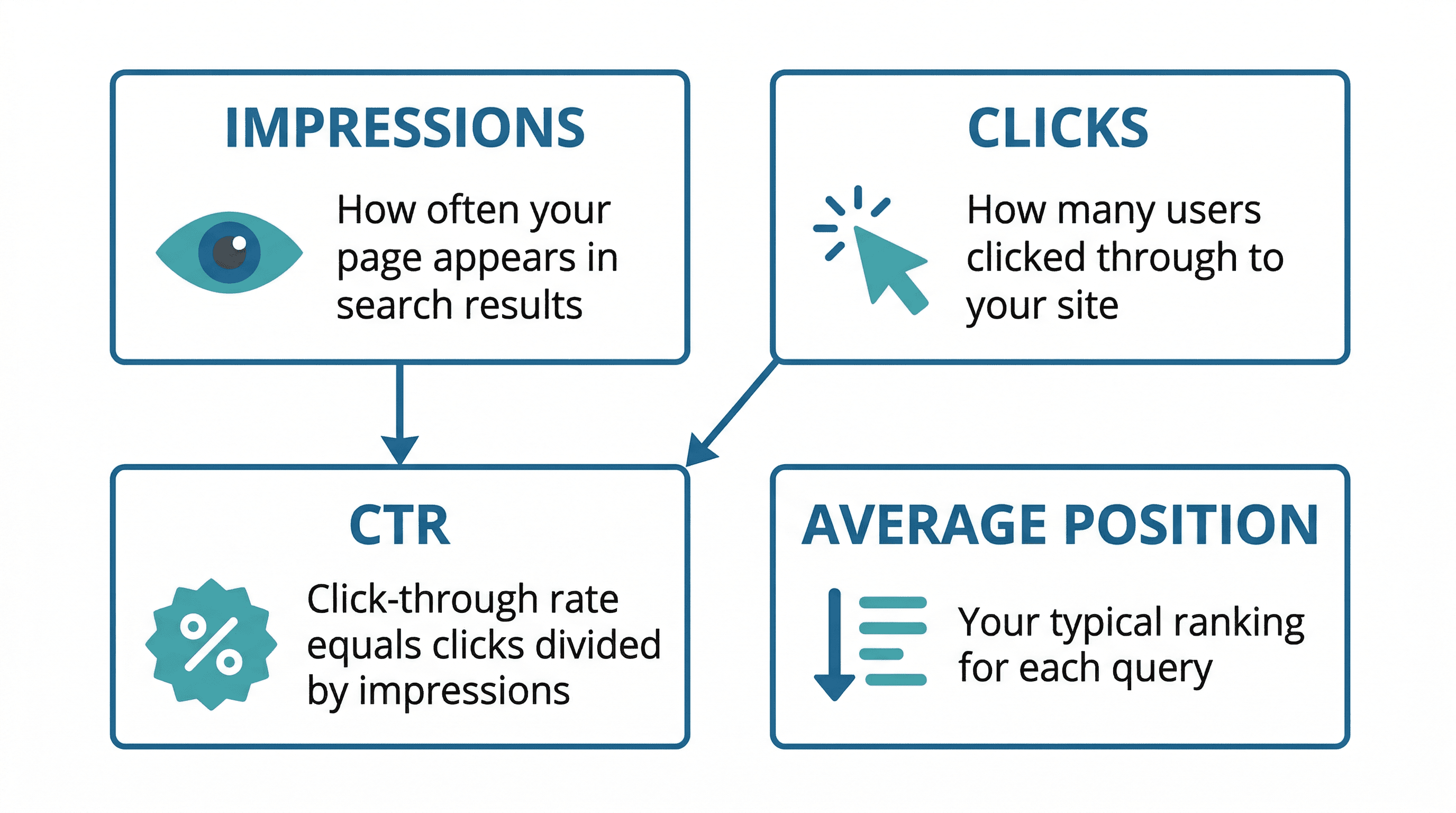
This data is gold for understanding which content works and which needs improvement. If a page has high impressions but low CTR, your title and meta description probably need work. Use the OG Previewer to check how your meta tags look before tweaking them.
Fix Errors
GSC surfaces errors across several reports. The most common ones you'll encounter:
- Server errors (5xx): your server returned an error when Googlebot tried to crawl a page
- Redirect errors: too many redirects or redirect loops
- Soft 404s: pages that return a 200 status but look like error pages to Google
- 404 errors: pages that no longer exist but are still linked somewhere
Common Issues and How to Handle Them
Pages Not Indexed
This is the most frequent problem. GSC will label unindexed pages with reasons like:
- "Discovered - currently not indexed" - Google knows the page exists but hasn't crawled it yet. Usually resolves on its own, but you can speed it up by requesting indexing.
- "Crawled - currently not indexed" - Google crawled it but decided not to index it. This often means the content is too thin, duplicated, or low quality.
- "Blocked by robots.txt" - Check your
robots.txtfile. You might be accidentally blocking pages. - "Excluded by noindex tag" - A
noindexmeta tag or header is telling Google not to index the page. If that's unintentional, remove it.
Crawl Errors
If Google can't access your pages, nothing else matters. Common causes:
- Server timeouts on pages that take too long to render
- DNS resolution failures
- Pages behind authentication that Googlebot can't access
- Broken internal links pointing to deleted pages
Fix these first. Everything else in GSC depends on Google being able to actually reach your pages.
Mobile Usability Warnings
Google primarily uses mobile-first indexing, so mobile usability issues directly impact your rankings. Common warnings include:
- Text too small to read
- Clickable elements too close together
- Content wider than screen
If you're using Tailwind CSS with responsive design (and you probably are if you're reading this), most of these should be fine. But it's worth checking, especially for pages with tables, code blocks, or embedded content.
Quick Wins
Request Indexing for New Pages
Just published something? Don't wait for Google to find it. Go to the URL Inspection tool in GSC, paste your URL, and click "Request Indexing." Google will prioritize crawling that page.
This is especially useful for new blog posts, landing pages, or any content you want visible in search quickly.
Check Core Web Vitals
The Core Web Vitals report shows how your pages perform on real user metrics:
- LCP (Largest Contentful Paint): how fast the main content loads - aim for under 2.5 seconds
- INP (Interaction to Next Paint): how responsive your page is to user input - aim for under 200ms
- CLS (Cumulative Layout Shift): how stable the layout is - aim for under 0.1
These metrics affect rankings and user experience. If you see issues, focus on image optimization, reducing JavaScript bundles, and setting explicit dimensions on images and embeds.
Use It Alongside Your Other Tools
GSC works best as part of a broader workflow. Before you launch or after you deploy changes, run through the Launch Checklist to make sure everything is in order. Validate your sitemap with the Sitemap Analyzer, preview your meta tags with the OG Previewer, and then check GSC to confirm everything is being picked up correctly.
Wrapping Up
Google Search Console is one of those tools that's easy to set up and immediately useful. Five minutes of work gives you visibility into how Google treats your site - something you'd otherwise have to guess about.
Set it up. Verify your domain. Submit your sitemap. Then check back every week or two to see how things are going. Most issues GSC surfaces are straightforward to fix, and the search performance data alone makes it worth your time.
More blog posts
